 Passquare
How-to notes
Card installation memo
- To get a card, the customer must open the card issuance form via a direct link or a website that hosts this link. The link can also be encoded in a QR code or an NFC tag. The link must be opened in a browser: Safari on iOS, Chrome on Android. Using any other apps or browsers to open the issuance form link may prevent successful registration and card installation.
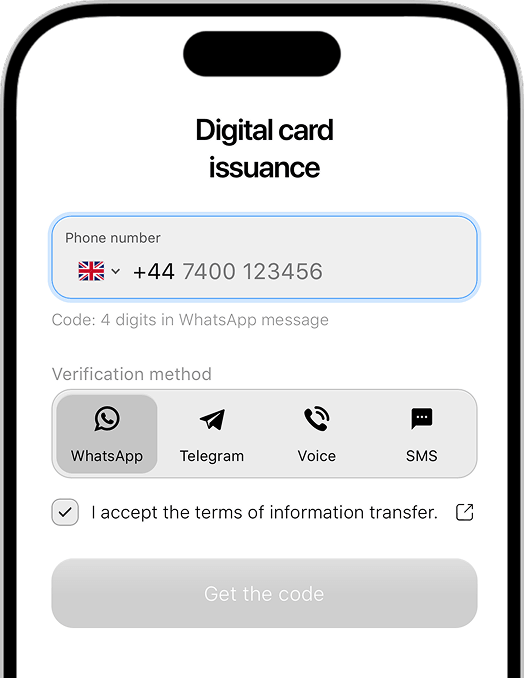
- Cards can be issued with phone number confirmation, for example via SMS or a call, or without it. When phone confirmation is used, the customer first enters and confirms the phone number, then fills in the form.
- If the customer uses iOS, they will be offered to add the card to Apple Wallet. When the card opens in Apple Wallet, they need to add it by tapping the button in the upper-right corner of the screen. To use the card, open Apple Wallet and find the card. Apple Wallet is a system app and is preinstalled on all iPhones.
- If the customer uses Android, they will be offered to save the card in Google Wallet. After the card is saved, it appears automatically in the Google Wallet app. To use the card, open Google Wallet and find the card. On most Android devices, Google Wallet is a system app. If it is not preinstalled, it can be installed from Google Play.
- If the customer could not install the card on their phone, they should return to the card issuance page and repeat the installation steps. Alternatively, they can get a personal installation link from your staff.
Card acceptance memo
- Depending on your company rules, accepting a card at the checkout may require entering the card number or phone number manually, or scanning a barcode or QR code with a scanner, camera, or mobile app.
- If there is a dispute about the current bonus balance or discount level, rely on the bonus and discount information in your CRM. Bonuses and discounts may not update on the card for various reasons. Read more in Card balance is not updating.
Staff memo for expired cards
Share this article with every employee who works with customers. Knowing this information helps build loyalty toward your company and resolve card issues effectively.
When a customer reports that an Apple Wallet card has disappeared from the app, act based on the specific situation:
1. The customer's card is installed but moved to Expired
Help the customer find the card in the extra sections of Apple Wallet:
- Open Apple Wallet, scroll through all cards, and go to Expired
- Find and open the card in Expired
- Tap Unhide
- Check that the card appeared in the main section of Apple Wallet
You can also suggest turning off automatic moving of cards to Expired. This feature is available on devices with iOS 15 and later.
To do this:
- Open the phone Settings, then go to Wallet & Apple Pay
- Find Hide Expired Passes
- Turn the feature off
2. The card shows "Card expired" or the QR code is blocked
- Turn the card over (depending on the app, use the ⋮, ⋯, or ⓘ icon)
- Check that Automatic Updates is enabled on the card
- If Automatic Updates is off, turn it on
- Go to the back of the card and pull down (swipe down to refresh the card)
- The card will update within a few minutes
These steps work only if the balance in your Passquare account is topped up.
3. Google Wallet cards
Google Wallet cards do not require extra action from the user. The card moves between sections automatically, and automatic updates cannot be turned off for these cards.
To avoid these situations, we recommend topping up the balance in your Passquare account on time.
Contact Passquare support if you need help.
Get started free
Try Passquare — it’s free & easy.
Create an account, set up your signup form, design your cards, issue a few wallet passes, and send your first push notifications.
Sign up for free