 Passquare
Self-serve Quick Resto integration
To set up the integration, you need a discount or bonus loyalty program configured in Quick Resto. If you do not have an active loyalty program yet, configure it in Quick Resto. If needed, use the guides or contact Quick Resto support: https://quickresto.ru/support/.
In Passquare settings, set the starting wallet card number. This number must be greater than the numbers of cards already created in the CRM.
To set up the integration, you need:
- Your Quick Resto cloud address: `[account_name].quickresto.ru`
- Login and password for Quick Resto API access.
- For a bonus system, the bonus account ID. You can find it under CRM → Bonus account types. Select the account you need and copy the ID from the address bar.
Open your Passquare account and go to Integration:
- If a demo period is on, turn it off before you set up the integration.
- Click the CRM system field and select Quick Resto from the drop-down list.
- In Server, enter your Quick Resto cloud address: `[account_name].quickresto.ru`
- In Login, enter the Quick Resto API login.
- In Password, enter the Quick Resto API password.
- In Program ID, enter:
- for a discount system: `discount`
- for a bonus system: `bonus_account_type-bonus_account_id`
- In Additional parameters, enter:
{ "type": "token_type", "entry": "card_reading_type", "variables": [ "accumulation" ] }
Token type (`type`):
- `"card"` — card;
- `"qrGuest"` — QRGuest app;
- `"pin"` — PIN code;
- `"phone"` — phone number.
Card reading type (`entry`):
- `"manual"` — enter the card number manually;
- `"qrCode"` — scan a QR code;
- `"barCode"` — scan a barcode;
- `"trackCode"` — read the card magnetic stripe.
Integration details
- Bonus accrual and redemption, and discounts, are configured and processed in your Quick Resto system.
- If cards should show the bonus size as a percentage, include the bonus size as a number in Quick Resto customer group names. For example: "Group 5%", "Bonuses 7", "Gold 20%".
- If you already have a guest database in Quick Resto with accumulated bonuses and discounts, or you plan to migrate a guest database with balances from another CRM, contact Passquare support before you connect.
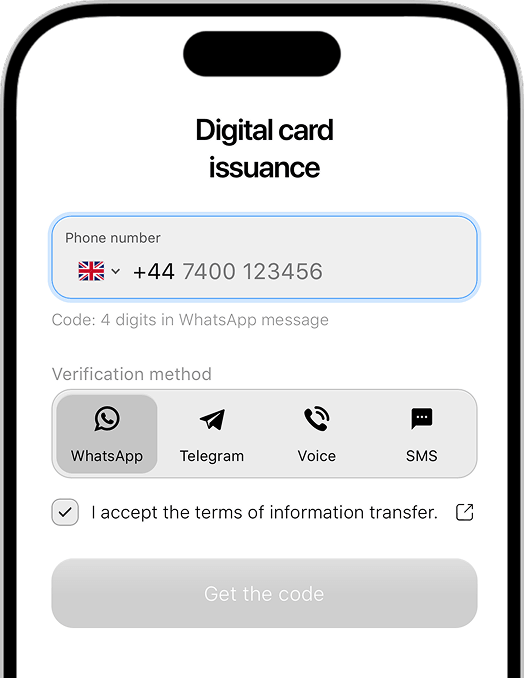
- To keep previously accumulated guest bonuses and discounts, you need to upload the guest database (available through support when you pay for a 3-month plan) and enable guest phone verification by SMS or phone call.
- After a card is issued, the guest and card usually appear in Quick Resto within a few minutes to a few hours. The maximum delay is 24 hours. Timing depends on system load and the update queue.
- When the bonus balance or discount changes in Quick Resto, the information appears in Passquare and on the guest card after the card is refreshed in the Passquare account or on the guest’s phone.
Get started free
Try Passquare — it’s free & easy.
Create an account, set up your signup form, design your cards, issue a few wallet passes, and send your first push notifications.
Sign up for free