 Passquare
Set up phone verification services
Connect verification via Twilio Verify
Twilio Verify creates the code and sends it by SMS. Passquare does not send its own code. Follow these steps:
- If you do not have a Twilio account, sign up and add credit.
- On the Twilio Console home page, copy Account SID and Auth Token.
- Open Verify → Services, create a service, and copy its Service SID. It starts with VA.
- In that service, open Settings → General and set Code length to 4.
- Open Verify → Settings → Geo permissions. Allow SMS for every country you send codes to. A new account often allows only the country used at signup.
- Go to your Passquare account, Settings → SMS and OTP services.
- Click Add. In the Integration setup window, set Integration type to Twilio Verify.
- In Login, enter the Account SID.
- In Password, enter the Auth Token.
- In API key, enter the Verify Service SID.
- Click Save.
- Go to Issuing cards → Edit form → Parameters.
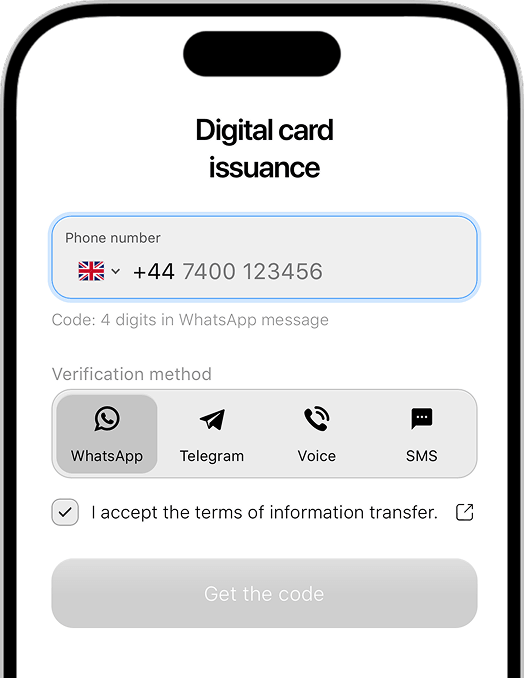
- In the Verification block, select SMS.
- Select Code is generated externally. Without this, the form checks a Passquare code that was never sent.
- Click Save.
Connect verification via Telnyx Verify
Telnyx Verify creates the code and sends it by SMS. Passquare does not send its own code. Follow these steps:
- If you do not have a Telnyx account, sign up and add credit.
- In the Telnyx Mission Control portal, open API Keys and create a key. Copy it when it is shown. Telnyx does not show it again.
- Open Verify → Profiles, create a profile, and copy the profile ID.
- In the profile SMS settings, set Code length to 4. The default is 5.
- In the same SMS settings, check Whitelisted destinations. Every country you send codes to must be on the list.
- Go to your Passquare account, Settings → SMS and OTP services.
- Click Add. In the Integration setup window, set Integration type to Telnyx Verify.
- In Password, enter the API key.
- In API key, enter the Verify profile ID.
- Click Save.
- Go to Issuing cards → Edit form → Parameters.
- In the Verification block, select SMS.
- Select Code is generated externally. Without this, the form checks a Passquare code that was never sent.
- Click Save.
Connect verification via Prelude Verify
Prelude Verify creates the code and sends it by SMS. Passquare does not send its own code. Follow these steps:
- If you do not have a Prelude account, sign up.
- In the Prelude dashboard, open API Keys and click Generate Key. Copy the secret shown at that moment. The ID in the list, the value that starts with key_, is not the token. Prelude does not show the secret again.
- In the Verify section, open message settings and set the code length to 4.
- In the Verify dashboard, open the route settings for each country. SMS must be allowed for every country you send codes to.
- Go to your Passquare account, Settings → SMS and OTP services.
- Click Add. In the Integration setup window, set Integration type to Prelude Verify.
- Enter the API key in Password or in API key. One of the two fields is enough.
- Click Save.
- Go to Issuing cards → Edit form → Parameters.
- In the Verification block, select SMS.
- Select Code is generated externally. Without this, the form checks a Passquare code that was never sent.
- Click Save.
Connect verification via WhatsApp (GREEN-API)
To connect verification through WhatsApp (GREEN-API), follow these steps:
- If you do not have a WhatsApp (GREEN-API) account, sign up in the service.
- In Instances, find and copy idInstance and apiTokenInstance.
- Go to your Passquare account, Settings → SMS and OTP services.
- Click Add. In the Integration setup window, set Integration type to Other. An extra Integration type field appears; enter SMSWhatsApp.
- In the Login field, enter idInstance.
- In the API key field, enter apiTokenInstance.
- Click Save.
- Go to Issuing cards → Edit form → Parameters.
- In the Verification block, select the WhatsApp checkbox.
- Click Save.
Connect verification via Telegram (Telegram Gateway)
To connect verification through Telegram (Telegram Gateway), follow these steps:
- Go to Marketplace in your Passquare account.
- Enable the Phone verification via Telegram module (the toggle at the bottom of the page).
- Message Passquare support to activate phone verification via Telegram.
To connect voice-call verification, or an SMS provider that is not listed here, contact Passquare support. They will tell you which providers are available for your country.
Get started free
Try Passquare — it’s free & easy.
Create an account, set up your signup form, design your cards, issue a few wallet passes, and send your first push notifications.
Sign up for free